
When we think about a ‘data security investigation’, we usually think of a reactive event where we are investigating some type of data breach or security incident that’s already occurred. However, security tools have been evolving recently to facilitate more and more proactive use cases in addition to the usual reactive ones. With any security solution, I like to think about how I can use it in a proactive way to protect my environment and prevent data breaches from occurring in the first place, in addition to performing root cause analysis and assessing the damage inflicted by a breach after it has already happened.
This article is a first look at Microsoft Purview Data Security Investigations (DSI) where we explore how to set it up and how to use it, for both proactive and reactive use cases.
It’s important to give credit where credit is due… huge thank you to my colleague and friend, and co-author on this blog, Deep Trivedi. Deep and I are enjoying working with DSI to explore and learn about its capabilities for our clients!
Investigating data security issues or breaches can be time consuming and complex. Traditionally, we spend our time scouring through logs and searching for keywords. This is made more complex by the fact that, for those investigating a breach, it’s often very difficult to understand the nature of the data impacted by a breach – this often is lost or not given enough focus during investigations due to the complexities involved. When documents are leaked or exfiltrated as part of a breach, it’s hard to know what’s contained within and what risks they pose to the organization – investigators often don’t have the necessary context to truly understand the impact. In many cases, the contents of documents involved in a breach and their sensitivity, help to truly identify the risks to an organization and the impact that a breach can have.
Purview DSI is in fact all about the data. It leverages AI to help investigators determine the nature of data involved in a breach so that they can better understand a breach’s impact. It allows us to:
- Deep content analysis & examination
- Categorize the data
- Run AI searches against the data and deep AI analysis
- Understand the nature it and the risks posed by the data
With the capabilities of generative AI, we can now reason over, search and summarize potentially breached data much more quickly and efficiently so we can ultimately be better informed as we determine how to mitigate the risks of a breach. Let’s take a deeper look at Purview DSI…
Data Security Investigations Home Page
When logged into the Purview Admin Center, to access the Microsoft Purview Data Security Investigations solution, click Solutions in the left rail and then Data Security Investigations. When you first navigate to Purview DSI, you’ll be prompted with a message asking you to consent to the AI processing of your data by Microsoft Security Copilot.
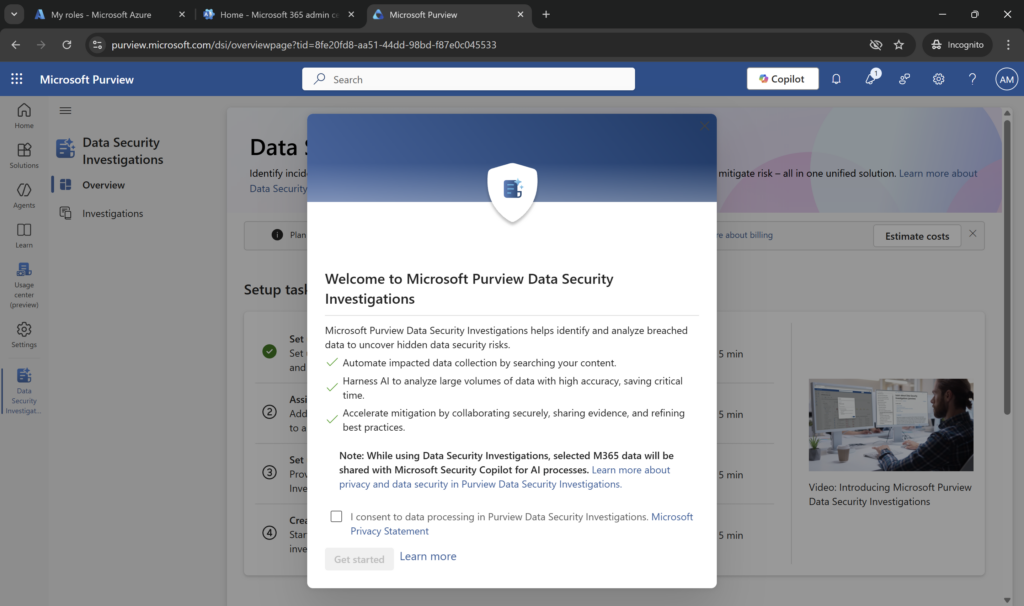
AI is at the heart of Purview DSI, and features like AI Search, Vector Search, AI based categorization and examination only work with AI processing, which is what enables us to reason over risky data or data impacted by a breach quickly and efficiently.
Once you have agreed, there are 4 initial configuration steps that must be performed before you can create an investigation:
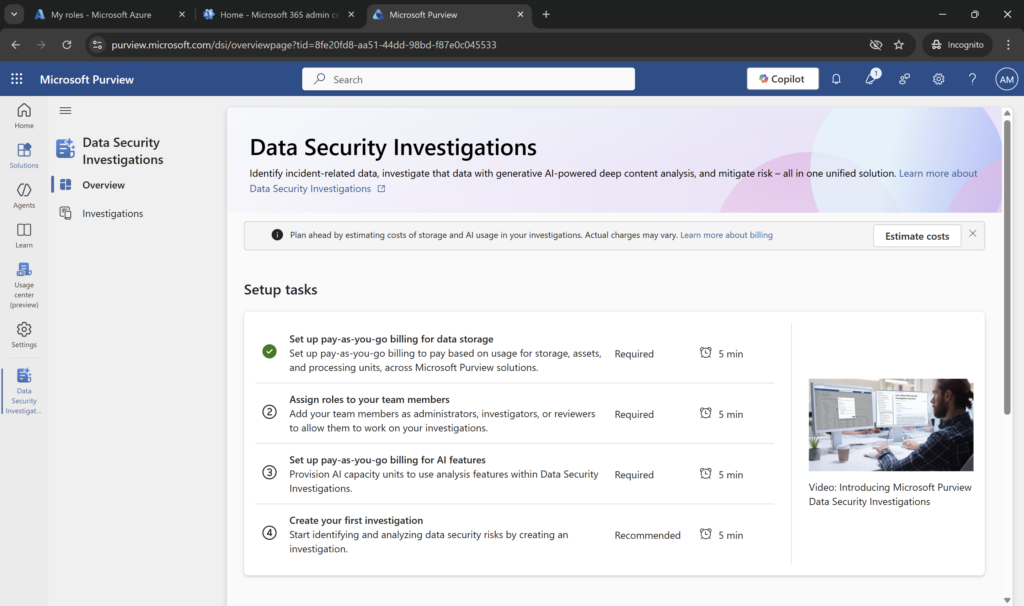
These steps involve configuring the required pay as you go subscriptions (steps 1 and 3), configuring the required roles (step 3) and then creating your first investigation (step 4).
No Purview Prerequisites
One thing I love about Purview DSI is that there are no prerequisites related to using other Purview services. You can be completely new to Purview and use DSI once you’ve configured its subscription meters.
Configuring a Subscription
Purview DSI is an entirely consumption-based service where you pay based on how much you use. This consumption is billed through an Azure pay-as-you-go subscription, and the cost is measured using a combination of 2 meters:
- DSI Storage Meter – amount of data stored across all investigations
- DSI Compute Meter – computing capacity required by AI analysis activities you perform
You can see more information about its pricing from Microsoft here: Pricing – Microsoft Purview | Microsoft Azure.
DSI Storage Meter – The storage meter is measured on a GB/month basis for all data stored across all data security investigations. You only stop paying for the data storage meter, for a particular investigation, when you delete the investigation (which will in turn delete all the data in DIS that is stored with it).
DSI Compute Meter – This is measured based on ‘compute units’ which are used to perform AI related activities on the content stored with a data security investigation. This meter in fact includes both AI analysis actions and mitigation actions (such as purge, which we’ll talk about later in this series).
When configuring the pay-as-you-go billing for AI features (the AI capacity meter), you will need to choose the Microsoft data center region utilized for the compute units used to process of your data. The options are the following:
- Australia/New Zealand (ANZ)
- Europe (EU)
- United Kingdom (UK)
- United States (US)
Note: This setting does not impact where your data is stored at rest. Your data at rest stays where ever your data center is located. When you configure capacity, you select where you want your properties to be stored. The compute only occurs in one of the 4 data center regions that are available as part of the compute meter. Depending on your data privacy and sovereignty policy, you may need to confirm which location is right for your organization.
There is an option for ‘if this location is busy, allow AI processing to take plan anywhere in the world’ which means that Microsoft can determine the optional location based on current load – Microsoft recommends enabling this option so that you can benefit from available capacity in other data centers. Again, you may want to consult with your privacy policies and/or privacy team to determine if this is appropriate for your organization.
- Important Note #1: your user account must be given the Data Security Investigations Admins role in Purview Admin Center > Settings > Roles and Scopes > Role Groups in order to configure the AI Capacity meter in Step 3 of the screenshot above.
- Important Note #2: the AI meter is based on ‘compute units’ and not ‘security compute units’. This means that Microsoft Security Copilot SCUs that are now include with Microsoft 365 E5 licenses cannot be used to pay for AI capacity used in Purview DSI.
A great feature included with Purview DSI is the cost estimation panel, which helps you select different amounts of data stored as well as the number and types of AI activities performed to get an estimate on your expected Azure bill. Click the Estimate costs button on the home page to access the estimator:
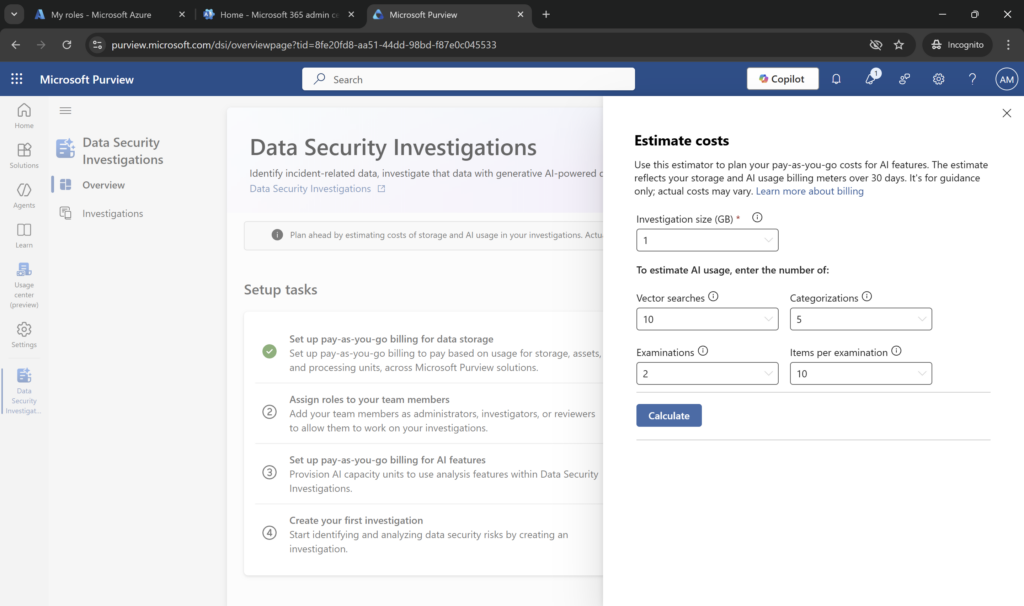
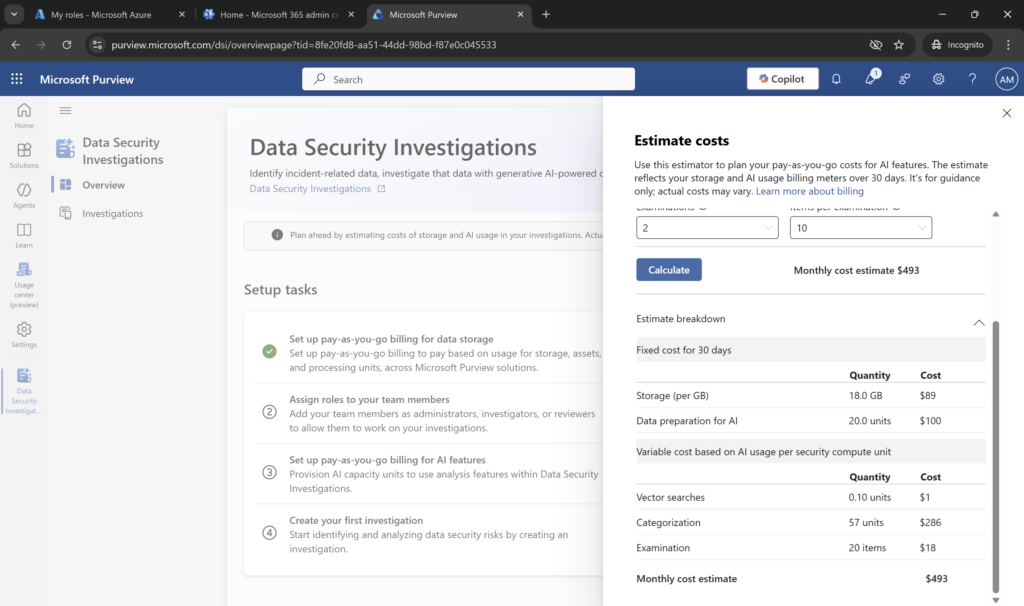
In playing with these numbers and clicking Calculate, you can quickly see that the most expensive AI activity in terms of both compute units and dollars is Categorization. When we think about what’s involved in this process, this makes sense – categorization of documents according to themes or pre-defined categories requires understanding the context of each document individually in your analysis set. Categorization gives a more holistic view of your data, however, this is a multi-step process in DSI for each document and consumes a significant number of GPUs. As well, through some initial testing I’ve found that you can get quite far in an investigation by using AI Search and Examination. So, I would recommend starting with those 2 options before looking at using Categorization. Its important to understand the impacts of these activities to the costs you’ll be billed so that you can select the right AI activities for your organization. Remember, DSI pricing is purely pay-per-use – there is no option to pre-provision capacity.
For more information on billing for Purview DSI, see the following Microsoft article: https://learn.microsoft.com/en-us/purview/data-security-investigations-billing.
Configure Required Roles and Permissions
To access Purview DSI, users must be assigned to one of the required roles in Settings > Roles and Scopes > Role Groups. This is similar to other Purview features that enable access to sensitive data and capabilities. There are effectively 3 roles in Purview DSI to know about:
| Purview Role | Description of Capabilities |
| Data Security Investigations Admins | Can administer and manage all features related to DSI, including configuring Azure Pay-as-you-Go licensing requirements |
| Data Security Investigations Investigators | Can create and manage investigations to which they are assigned; can do all other activities within those investigations; cannot configure Azure Pay-as-you-Go licensing requirements |
| Data Security Investigations Reviewers | Can view investigations to which they are assigned, but this is not simply a read-only view; they can also add, delete, and manage migration plan items, run categorization activities, run examination activities; run vector searches and view data risk graphs. These capabilities will affect your Azure subscription consumption. |
Even if you are a Global Admin, you must be assigned to one of these roles in order to access or create a data security investigation. For the purposes of our first run, we assigned ourselves to the Data Security Investigation Admins role.
For a more detailed view of permission capabilities for each role, see the article: https://learn.microsoft.com/en-us/purview/data-security-investigations-permissions#configure-permissions.
Proactive and Reactive Scenarios for Purview DSI
Purview DSI helps us accomplish some important use cases, both in post breach scenarios (reactive) and before a breach ever occurs (proactive). Let’s look at a few of those use cases:
1. Data Breach (reactive scenario)
We have the traditional post-breach investigation scenario – this is where a data breach has already occurred and we’re tasked with investigating its impact, determining root cause, and identifying containment and/or mitigation actions. In this case, Purview DSI helps us to understand the nature, scope and impact of the data that was potentially included in a breach.
- DSI features like AI search, categorization, and examination help us to understand the nature of that data at a much deeper level and more quickly than we ever could.
- Categorization helps us understand the general trends of the data that was exposed.
- AI search helps us understand more precisely what type of sensitive data may have been included in exposed documents.
This allows us to focus investigations on the most important data and report on organizational risks much more precisely to our management.
2. Inappropriate Conduct (reactive/proactive scenario)
We have scenarios where we may be investigating inappropriate conduct by employees, such as fraud or bribery use cases. These can sometimes be thought of as ‘needle in a haystack’ scenarios, where we are looking for particular keywords or identifiers within a large data estate to identify potentially malicious activity. This scenario can certainly be reactive, where we believe a malicious activity has already happened or we suspect its happening. But it can also be proactive, where as part of a regular assessment or compliance audit, we are conducting searches to validate whether such behavior is happening.
- The ability to start an investigation from Purview Insider Risk Management is really helpful in this case because the items included in the case are automatically included as data sources in the DSI investigation. You can start reviewing and adding items to the investigation scope in DSI.
- DSI’s AI search allows us ask natural language questions or enter keywords with a specific focus to narrow down items for review.
- DSI’s examination feature helps perform deep content analysis on selected data looking for security risks, such as credentials, network risks, or evidence of discussion. Once security risks are identified, you can scan for sensitive data, like personal data, financial, or health information.
These tools help you find evidence of inappropriate employee conduct within the potentially impacted data and expedite the ‘needle in a haystack’ type of searches we have traditionally performed.
3. Disrupted Attack Root Cause Analysis (reactive/proactive scenario)
When an attack is stopped by Microsoft Defender XDR automatic attack disruption, investigators often need to investigate the root cause of the attack to ensure that the attack path is well understood and effective mitigation steps are taken to prevent it occurring in the future. This is similar to scenario #1, where we want to understand the nature of the target data an attacker was accessing before disruption, so that we can either perform mitigation steps on that data, ensure that data is stored in the correct repositories (and recommend moving it if it is not), and validate that effective security controls are enforced on the target data.
- The ability to start an investigation from a Defender XDR incident is really helpful in this case because you can create the investigation and bring in mailbox, email message, or file node data from the incident.
- The items included in the scope of the incident are automatically included as data sources and you can start reviewing and adding these items to the investigation scope in DSI.
This use case can be implemented by leveraging Microsoft Security Exposure Management to expand attack paths and better understand where you can mitigate risks of breaches in the future.
4. Assessment or Audit (proactive scenario)
As a scheduled security assessment activity, organizations often want to search their organization’s data estate to identify where passwords are stored and ensure that they are only stored in approved locations or repositories. This can often be part of a regular security assessment or internal audit activity which occurs on a regularly scheduled basis (annually). With the power of AI to reason over and search data using natural language prompts, this scenario can extend beyond just passwords to include other types of sensitive data, such as intellectual property, trade secrets, regulated data, financial or health records.
- The ability to start an investigation from Data Security Posture Management (DSPM) is really helpful in this case because the resulting investigation automatically includes all scoped data items as data sources.
- You can start reviewing, analyzing, and performing mitigations with DSI.
What’s Next…
In my next blog in this series, we’ll look at tactically creating an investigation with a set of data sources, running various AI searches, categorizations and analysis, and the types of risks we can find and mitigations we can put in place.
